 | Panel Painting |
|
Panel Groups |  |
The third step in developing your Dialog System application is to
position data fields on panels. This is the step where you specify where your
data fields will appear on your panel for subsequent input or output. There is
a limit of 512 data fields in a screenset, and 200 panel fields in any panel.
This chapter explains:
- How to position the data fields you previously defined onto your
panels
- How to define screen characteristics to be associated with a field
Pressing F3=field from the Panel Painting menu accesses the Panel
Field menu, shown in Figure 8-1, and a popup panel containing the list of
defined fields. Position the cursor where you would like your field to begin,
and press F3. You can use this menu to modify the field characteristics
of a selected field, and place, remove, modify, and relocate fields on the
current panel.
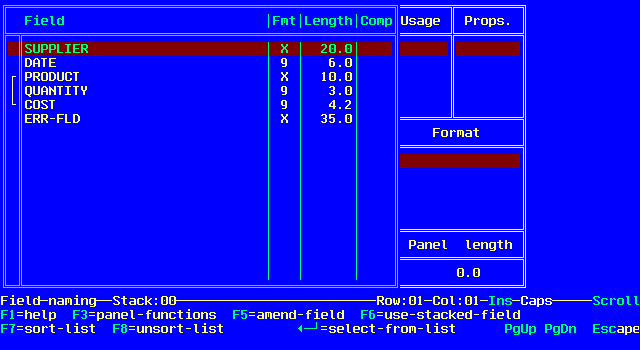
Figure 8-1: Panel Field Menu
You can use the popup panel to view and change the relevant
characteristics of the required fields. The left half of the panel lists the
data fields, their format, and their length, which you specified during data
definition (see the chapter Data Definition). To select a field to work
on, position the selection bar on the required field and press Enter.
The cursor moves to the right side of the panel.
The right half of the panel contains field detail panels that enable you
to change the characteristics of that field on the panel. The field detail
panels are:
- Usage
- Properties
- Format
- Panel Length
- Delimiter
If the format of the field is a date format, the Delimiter panel is
displayed; otherwise, the Panel Length panel is displayed.
In the field detail panels, you can choose from the existing default
values, or select a different characteristic. Use the <right-arrow>| and
|<left-arrow> keys to move between the characteristics and press the
space bar to select one. The characteristics selected are highlighted with >
and < symbols.
To return a field characteristic to its default value after you change
it, press the F2=reset function. This function is available from each of
the field detail panels and also some of the Panel Field submenus.
When you have completed your selection, press Enter . Your field
is placed at the cursor position on the panel as a series of caret characters.
The following screen field characteristics are available:
| Usage |
Specifies how a panel field is
used at run time. You can select one of the following mutually exclusive
options: |
|
|
IN |
Input field. This prefills the field with
the current data field value and enables the entry of data at run time. This is
the default type of usage. |
|
|
OUT |
Output field. This prefills the field with the current
data field value and protects it from input at run time. |
|
|
EXIT |
Exit field. This is an input field that forces return
to the calling program when the field is exited by any key defined in the
dialog, provided that the field has not failed any validations. |
|
|
XMOD |
Exit modified field. This is an exit field that forces
return to the calling program if the field contents have changed, provided that
the field has not failed any validations. |
|
|
XREG |
Exit regardless field. This is an exit field that
forces return to the calling program when the field is exited, regardless of
whether the field has failed validation. However, the status of the validation
is given in the control block. |
|
|
XENT |
Exit on entry. This exits to the calling program
immediately when the field is entered. So, for example, if you skip from the
previous field to this field, return to the calling program is forced before
any values are entered. |
| Properties |
Enables you to define
properties for the selected field to adopt at run time. These properties are
not valid if the field is defined as an output field. |
|
|
AUTO
|
Autoskip. Forces the cursor to move automatically to
the next field when the field is filled at run time. This is the default
property. |
|
|
REQD
|
Required. Prevents the cursor from leaving the field
if it is empty at run time, that is, if the field contains spaces in an
alphabetic or alphanumeric field, or contains zero in a numeric field. For a
date field, prevents the cursor from leaving the field if the day or the month
are empty.
Although the cursor cannot leave the field, an error message is
not produced at run time unless you have defined a data validation. Validations
are defined at the data level (see the chapter Data Definition) and are
applied whenever that data item is used, whereas the REQD property is applied
only at local screen level. |
|
|
FULL |
Prevents the cursor from leaving the field if an
alphabetic or alphanumeric field has any leading or trailing spaces, or a
numeric field has any leading zeros at run time. You cannot use this property
for date fields.
Although the cursor cannot leave the field, an error message is
not produced. The FULL property is applied at local screen level; to force a
field to be full whenever this field is used, you must define validation rules
for it at the data level. |
|
|
UPPER |
Changes any lower-case characters in alphabetic or
alphanumeric fields to upper case when they are entered.
NLS is supported, for the
folding of alphabetic characters. This feature is optional, and is controlled
by either setting NLS in the sidefile dsdef.cfg, or by linking
dsnlsrtn.obj as well as the COBOL system file cobnlsmg.obj when
creating the executable application. |
|
|
LOWER |
Changes any upper-case characters in alphabetic or
alphanumeric fields to lower case when they are entered.
NLS is supported, for the folding of alphabetic characters. This
feature is optional, and is controlled by either setting NLS in the sidefile
dsdef.cfg, or by linking dsnlsrtn.obj as well as the COBOL system
file cobnlsmg.obj when creating the executable application. |
|
NOECHO |
Prevents keystrokes entered from being displayed on the screen at
run time. Any characters entered cannot be captured by any facilities that look
at the screen buffer, such as a Print Screen key on the keyboard. This provides
a secure way of entering passwords and related functions.
By default, a non-echoed field displays spaces when data is
entered. You can configure Dialog System to use some other character; see the
chapter Setting Up the Configuration File. |
| Format |
Specifies how the field is displayed at
run time. The formats you can choose from depend on the format of the field
defined during data definition (A, X, 9, or S). For example, if you defined a
numeric field, you can choose zero suppression in the display, or if you
defined a date field, you can choose from several date display formats. Again,
the choice depends on the length of the date field in the data definition.
Formats are mutually exclusive and only formats that are valid for
the selected field are displayed on the popup panel. Possible formats are:
|
|
ALPHABETIC |
All upper-case and lower-case alphabetic characters, plus the space
character, can be entered. |
|
ALPHANUMERIC |
All upper-case and lower-case alphabetic characters, the space
character, and all the other ASCII keys, including the extended characters
entered using the Alt key, can be entered. |
|
NUMERIC |
All numeric characters and the decimal point can be entered. |
|
SIGNED |
All numeric characters, the decimal point, and the "+"
and "-" signs, for positive or negative values, can be entered. |
|
SUPPRESS |
Provides zero suppression for input and output, and right justifies
data entry and display. The last zero in the number is always displayed. |
|
99/99 |
Places four-character dates in DD/MM, MM/DD, MM/YY, or YY/MM
format. |
|
99/999 |
Places five-character dates in YY/DDD format, where DDD is the day
number from 1-365. |
|
99/99/99 |
Places six-character dates in DD/MM/YY, YY/MM/DD, or MM/DD/YY
format. |
|
99/AAA/99 |
Places seven-character dates in DD/MON/YY format, where MON is a
three-letter mnemonic for the month (see the chapter Data Definition for
valid month mnemonics). |
|
99/99/9999 |
Places eight-character dates in DD/MM/YYYY format.
If your applications need to work with the year 2000 and beyond,
you should use this format. You might need to revise your existing screensets.
|
|
When the cursor enters the Format panel, the additional
menu option F4=specify-user-format is displayed, which enables you to
select a user-defined format rather than the fixed formats described
previously. Pressing F4 displays a popup panel where you can enter a
format number in the range 1 through 4, where the format number corresponds to
one of up to 4 user-defined formats. If you select a user-defined format, you
must write a program, named dsusrfmt.cbl, that handles the format,
before you can use the resulting screenset. See the chapter Programming
for more information about the dsusrfmt.cbl program. |
| Panel Length |
Enables you to choose a panel length for the field that
is less than the true data field length. You cannot choose a length greater
than the true data field length. You can use this characteristic to set a field
up as a scrolling field.
When you enter the Panel Length panel, the additional menu option
F4=horizontal-scrolling-on/off is displayed, which enables you define
the field as a scrolling field. Specify the panel length for the display field,
then press F4 to toggle the scrolling on. A scrolling field uses two
extra character positions on the screen for indicators at either end of the
field to show whether if scrolling is possible in either direction.
|
| Delimiter |
Enables you to specify a date delimiter when the field
is a date format. You can use any character, such as "/",
"-" or ".", as a delimiter or separator. The default is
"/". |
The facilities provided in the Panel Field menu are described in the
following sections.
Enables you to select the field whose characteristics you wish to set.
Use the <up-arrow> and <down-arrow> keys to position the selection
bar on the required field and press Enter from the Panel Field menu. The
cursor moves to the right-hand side of the popup panel, where you can specify
usage, properties, format, and panel length or delimiter, as described in the
previous section.
Pressing F3=panel-functions from the Panel Field menu returns
control to the cursor in the panel and invokes the Panel Functions menu, shown
in Figure 8-2. This menu enables you to use the facilities for storing
field definitions when you copy or move existing fields. This option is also
available from the Amend Field and Use Stacked Field menus, described later in
this chapter.

Figure 8-2: Panel Functions Menu
The Cut To Stack and Copy To Stack options in this menu work in a
similar way to the block manipulation facilities described in the chapter
Panel Painting. If you use these options to place a field in a stack,
you can restore that field to the screen using the F6=use-stacked-field
function described later in this chapter.
When you select F3, the cursor moves from the popup panel to the
panel screen. This can be useful if you wish to define field characteristics
but you have not positioned the cursor where you require it in the panel screen
before you accessed the popup panel. You can select F3 to return to the
panel screen and reposition the cursor, then press Escape, which exits
the Panel Functions menu and returns control to the popup panel.
Pressing F4=cut-to-stack from the Panel Functions menu deletes
the field at the cursor position and places it in the field stack. The status
line indicates the number of fields in the stack.
Pressing F5=copy-to-stack from the Panel Functions menu copies
the field at the cursor position into the field stack, leaving the original
field in its place on the panel. The status line then indicates the number of
fields in the stack.
Pressing F5=amend-field from the Panel Field menu displays the
Amend Field menu, shown in Figure 8-3, which enables you to change the
characteristics of an existing field. Position the cursor on the field you want
to amend and press F5. The selection bar is positioned on the
appropriate entry in the data list and the characteristics currently set for
the field are displayed. You can change the usage, properties, format, and
panel length or delimiter as described in the section The Popup Panel
earlier in this chapter.

Figure 8-3: Amend Field Menu
To delete a field rather than amend it, you must use the
F9=delete-field-defn option in the Panel Painting Ctrl menu (see the
chapter Panel Painting).
Pressing F2=reset from the Amend Field menu resets the field
characteristics in the highlighted field details panel to their default values.
Pressing F3=panel-functions from the Amend Field menu invokes the
Panel Functions menu described earlier in this chapter.
If you select F3=panel-functions from the Amend field menu to
reposition the cursor before you finalize the field characteristics, a copy of
the field is placed on the panel in the new position, and the original is left
unchanged. You cannot position a field on top of an existing field or a group.
Pressing F6=use-stacked-field from the Panel Field menu places
the details of the field currently on top of the stack onto the popup panel and
displays the Use Stacked Field menu, shown in Figure 8-4. You can use this
menu in the same way as the Amend Field menu to modify the characteristics of
the field selected from the stack before you place it on the panel.

Figure 8-4: Use Stacked Field Menu
Pressing F2=reset from the Use Stacked Field menu resets the
field characteristics in the highlighted field details panel to their default
values.
Pressing F3=panel-functions from the Use Stacked Field menu
invokes the Panel Functions menu described earlier in this chapter.
Pressing F7=sort-list from the Panel Field menu sorts the field
name list into alphabetical order, which might make it easier to locate the
field you want. The groups in the data list remain together as a body, but the
fields in each group are sorted alphabetically.
Pressing F8=unsort-list from the Panel Field menu reverts the
field name list back to the original order, that is, the order in which you
defined the fields in data definition (see the chapter Data Definition
for details). The fields will occur in this original order in the generated
Data Block.
Copyright © 2002 Micro Focus International Limited. All rights reserved.
This document and the proprietary marks and names
used herein are protected by international law.
| Panel Painting |
|
Panel Groups | |